You send a signing request, the recipient opens it, and then nothing happens. Days later the link expires and someone has to start over. Signer drop-off is rarely about the signer refusing the deal; far more often, something in the request made signing harder, slower or less trustworthy than it needed to be.
The good news is that most causes are within the sender's control. This article breaks the signing journey into stages, explains what typically goes wrong at each one, and gives concrete fixes. It also shows how to use the status information you already have to find where your own signers stop.
Where signers stop: the five stages
Every signing request passes through the same stages, and each has its own failure mode.
- Receiving the message: the invitation arrives by email or WhatsApp, or it doesn't.
- Deciding to open it: the signer recognises the sender and understands what is being asked.
- Reading the document: the document is readable on the device they use.
- Verifying identity: the signer completes whatever check you chose, such as a one-time code.
- Completing the fields and signing: the signer fills in what is required and submits.
Each stage has a status you can usually see: delivered, opened, viewed, verified, signed. The gap between two adjacent statuses tells you which stage needs attention.
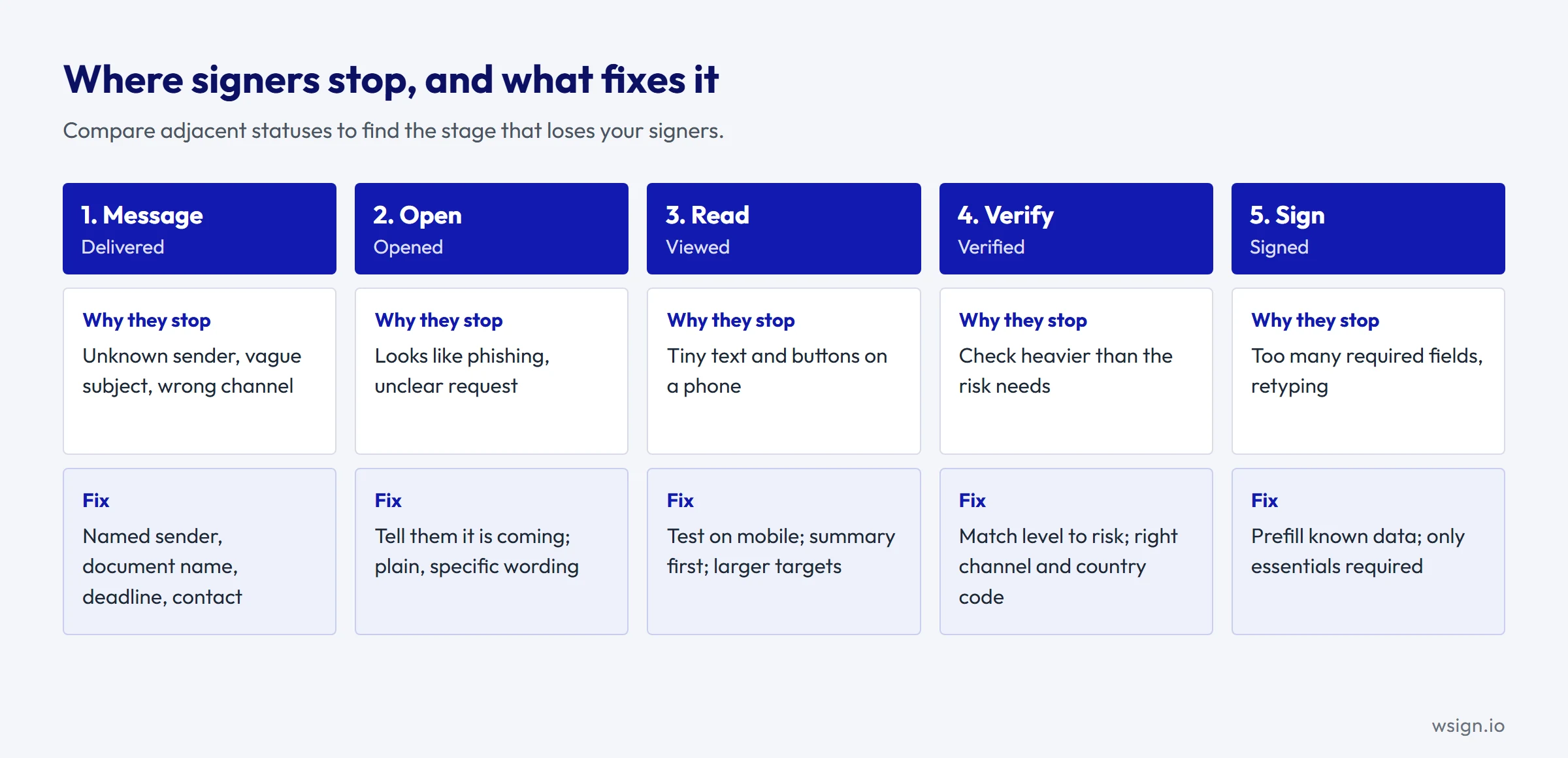
Stage 1 and 2: A message people trust and understand
The invitation is the first thing the signer sees, and many requests fail here. Signers have learned to be wary of unexpected "please sign" messages, with good reason; our sibling article on spotting fake signature request emails covers what attackers imitate.
A trustworthy invitation does four things:
- Names a sender the signer knows: a person's name and company, not a generic system address alone.
- Says what the document is: "Your tenancy renewal for unit 4B", not "Document for signature".
- States the deadline: people prioritise what has a date.
- Gives a way to ask questions: a contact who can confirm the request is genuine.
Telling the signer in advance, by phone or in a meeting, that a request is coming does more for completion than any wording. Choose the channel they actually use: for some audiences that is email, for others a WhatsApp message reaches them faster.
Stage 3: Readable on a phone
Many signers open requests on a phone between other tasks. A document designed only for a large screen, with small text, wide tables and tiny buttons, is easy to postpone and then forget.
- Test on a phone before sending a new layout, not only on your desktop.
- Give controls room: the W3C's accessibility guidelines set a minimum target size of 24 by 24 CSS pixels for pointer targets, with listed exceptions (WCAG 2.2, success criterion 2.5.8). Small signature and checkbox fields are hard to hit on a touch screen.
- Put a short summary first for long documents, so the signer knows what they are agreeing to before scrolling through twenty pages.
Stage 4: The right verification level, not the highest
Verification protects both parties, but every step costs some signers. A one-time code is quick for most people; identity verification with a document and a selfie takes longer and needs good lighting and a working camera. Signing with a certificate token requires the signer to have a token in the first place.
Match the level to the document's risk rather than defaulting to the strongest option. Our sibling article on signer authentication levels gives a matrix for that decision. Then reduce friction within the chosen level:
- Send the code to the channel the signer is most likely to have to hand.
- Make sure the phone number has the correct country code before sending.
- If you require identity verification, say so in the invitation so the signer is ready.
Stage 5: Fewer, smarter fields
Each field you ask the signer to complete is another chance to stop. Review every required field and ask whether you truly need it from this person, now.
- Prefill what you know: names, addresses and reference numbers you already hold should be in the document, not typed again. The W3C guidelines describe the same principle as avoiding redundant entry: information already provided in a process should be auto-populated or available to select, with exceptions such as security (WCAG 2.2, success criterion 3.3.7).
- Make optional fields optional: marking everything as required stalls signers who do not have one detail to hand.
- Ask for attachments only when needed: if the signer must upload a document, tell them in the invitation which one.
When you import a PDF and place fields, check that each field is assigned to the right signer. A required field accidentally assigned to someone else blocks the person who cannot complete it.
Reminders and expiry that work together
Reminders recover requests that were opened and forgotten. Expiry gives the request a natural deadline. The two should be planned together.
| Setting | Too little | Too much | A sensible middle |
|---|---|---|---|
| Reminders | Forgotten requests stay forgotten | Daily messages feel like pressure and get ignored | Two or three reminders spread over the request's life |
| Expiry | Links expire while signers are travelling or reviewing | Old requests stay open and get signed out of context | Match the real validity of the offer or the business deadline |
A final reminder shortly before expiry is often the most effective, because it carries a real deadline. For dates that need follow-up after signing, such as contract renewals, see the renewals page.
Language and tone
A signer reading in a second language will slow down, and may stop to ask a colleague. Send the invitation and the signing page in the signer's language where possible, and keep the message plain. For contracts in two languages, make the prevailing version clear so the signer does not hesitate over which text binds them; see our sibling article on bilingual contracts.
Find your own drop-off point
General advice helps, but your own data tells you which stage to fix first. Over a few weeks, look at requests that did not complete and note the last status each reached.
- Many delivered but not opened: work on the message, sender name and channel.
- Many opened but not viewed: the signer did not reach the document, which points to trust or a confusing first screen.
- Many viewed but not verified: the verification level or code delivery is the obstacle.
- Many verified but not signed: look at fields, attachments and mobile layout.
Change one thing at a time and compare the next few weeks, so you know which change made the difference.
A worked example
Imagine a property management office whose renewal requests often expire unsigned. Reviewing a month of requests, the team finds that most tenants open the message and view the lease, then stop. Testing on a phone, they discover that the lease asks every tenant to type their full address and ID number again, and that the signature field sits on the last of fourteen pages with no summary.
They prefill the address, keep the ID number as the only typed field, add a one-page summary of what changes in the renewal, and add a reminder two days before expiry. They also add the property manager's name to the invitation. The next month, they compare where requests stop and see whether the gap at the field stage has narrowed.
Frequently asked questions
Should I extend the expiry if a signer has not signed?
If the terms are still valid, resend or extend rather than letting the request lapse silently. If prices or conditions have changed, prepare a new document instead.
Does stronger verification always reduce completion?
Each step adds effort, but signers accept steps they understand. Explaining in the invitation why a check is needed reduces surprise at the verification stage.
How many reminders are reasonable?
Two or three across the life of the request usually balance persistence and respect. Adjust for documents that need review on the signer's side.
Is WhatsApp better than email for invitations?
It depends on the audience. Use the channel each signer checks most often, and make sure the sender is recognisable on that channel.
To apply these fixes with reminders, expiry, one-time codes by email or WhatsApp and per-stage status, you can create a wsign account.